Getting started
Ister is your personal media server, and this app is how you watch, listen and read from it — on your phone, TV, desktop or in the browser. With the app installed, this chapter gets you from a fresh install to your first home screen.
Adding a server
When you open the app for the first time you are welcomed with a single button: Add a server. Tap it and type the address of your Ister server — for example media.example.com or 192.168.1.10:8080/api — then tap Connect. You can paste the address straight from your browser; a leading https:// or trailing slash is cleaned up for you.
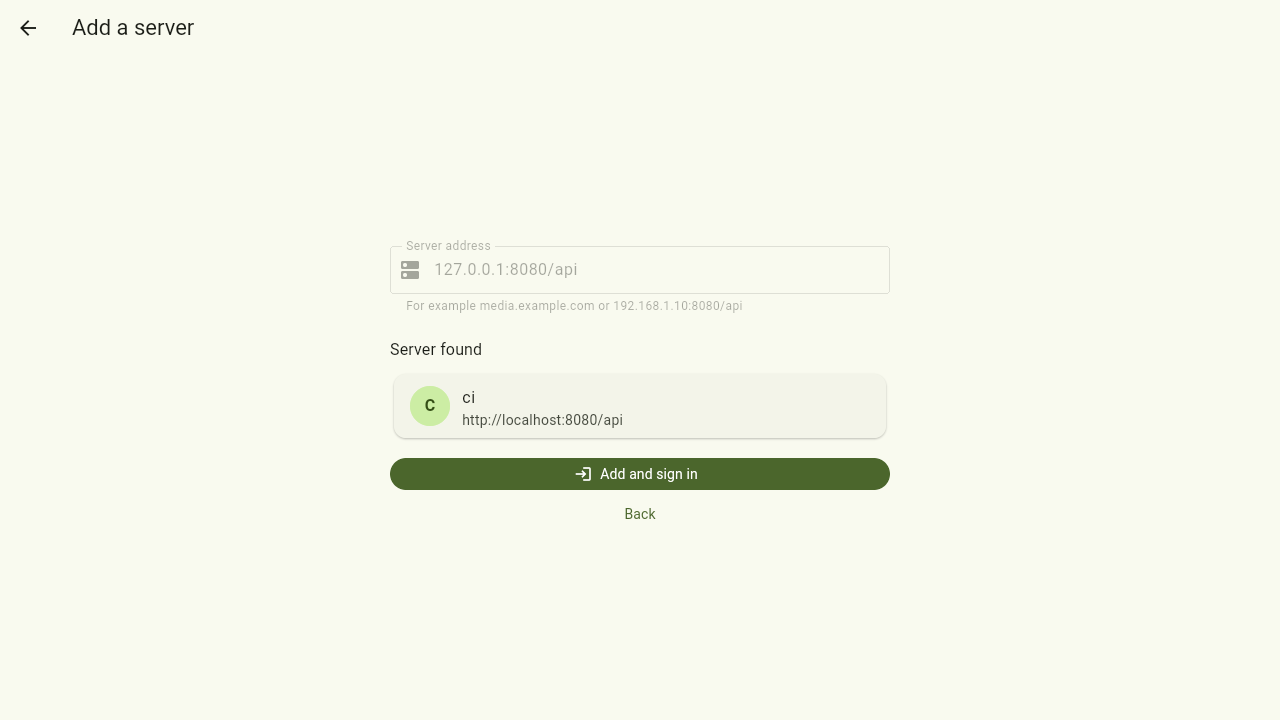
You don't need to know any technical details beyond the address: the app asks the server to describe itself and shows what it found — the server's name and address — before anything is saved. If that looks right, tap Add and sign in. If the address doesn't answer, or answers but isn't an Ister server, the page tells you so and you can correct the address in place.
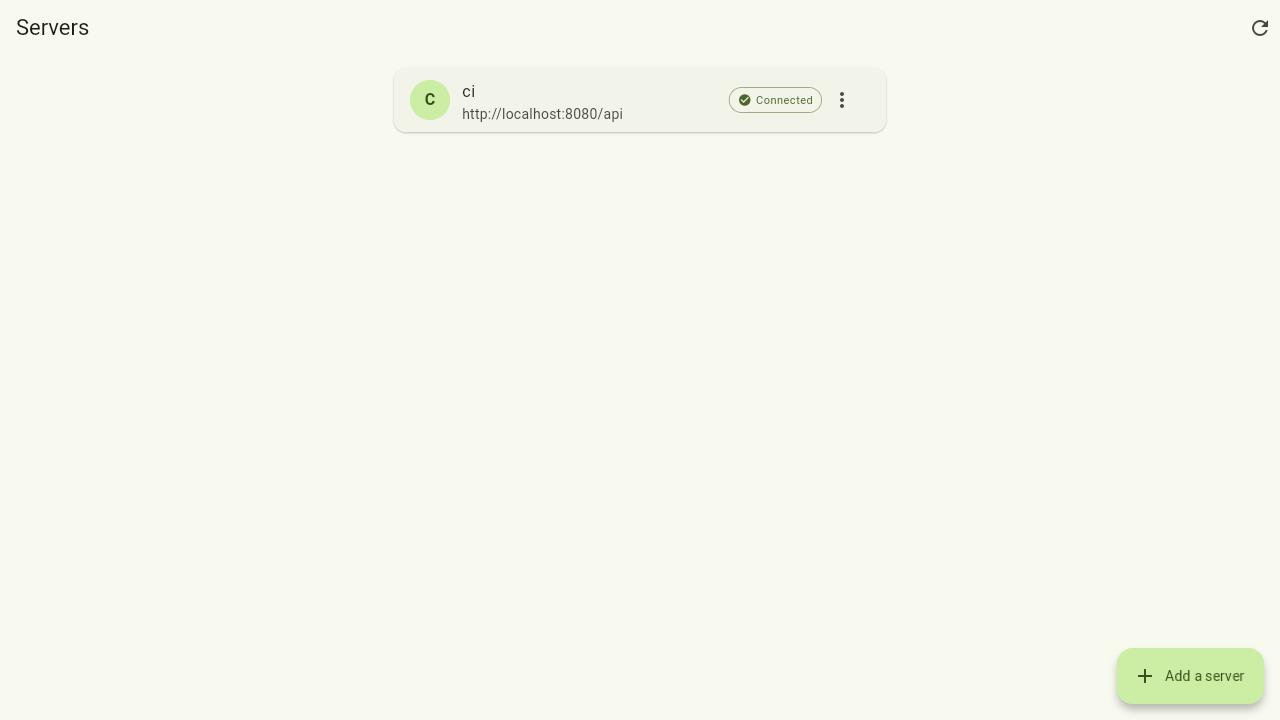
Once you have at least one server, the app opens the last one you used automatically. The server overview — the list of all your servers — is one tap away (see Navigation); add more servers there with the Add a server button.
Signing in
Ister uses single sign-on: the app opens your organisation's or home server's regular login page in a secure window. Sign in there — with the same account you use elsewhere — and you're returned to the app automatically. Your session is stored per server, so you only do this once per server.
Your home screen
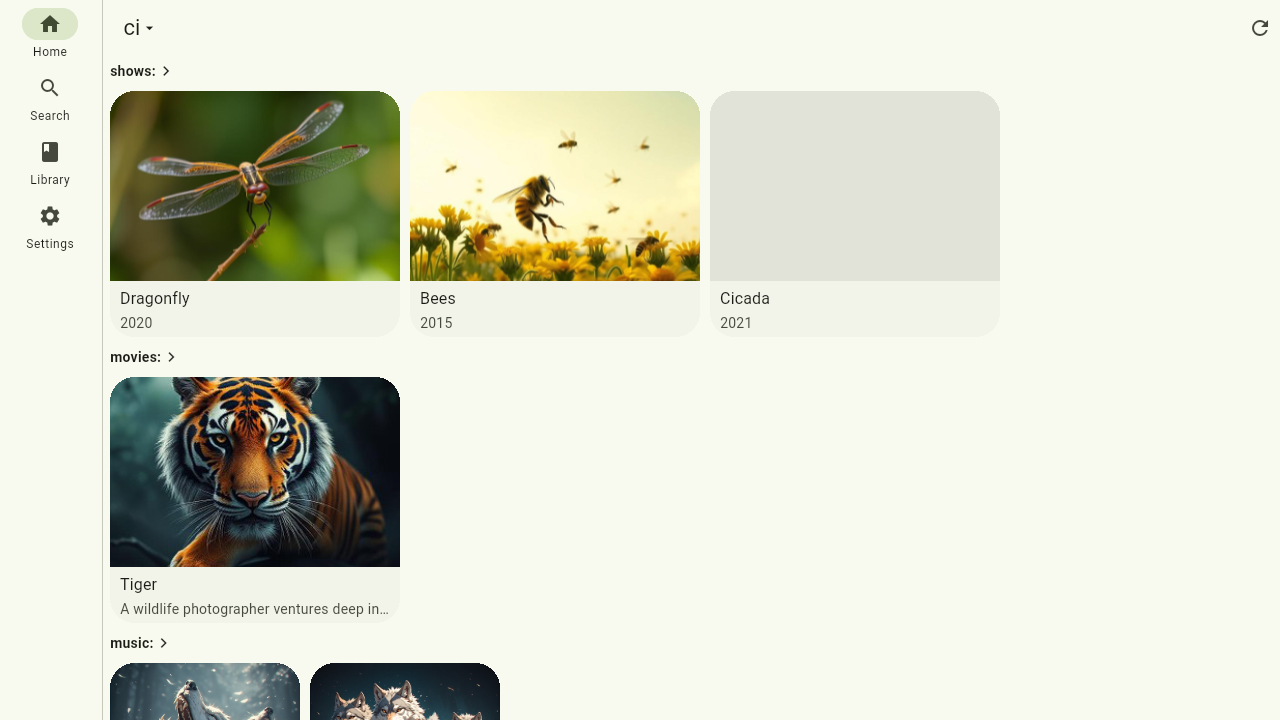
After signing in you arrive at the server's home dashboard: what you were recently watching or listening to, plus rows of your libraries.
You can add as many servers as you like; each keeps its own login and settings. Switching between them is covered in Navigation. Each server on the overview shows whether it is currently reachable; an unreachable one can still be opened to reach what you downloaded earlier. To remove a server, open its menu (⋮) and choose Remove — after confirming, the server and its stored sign-in are forgotten on this device; nothing changes on the server itself.
Where to next
- Find your way around in Navigation
- Explore your libraries in Browsing
- Start watching or listening in Playback