Administration
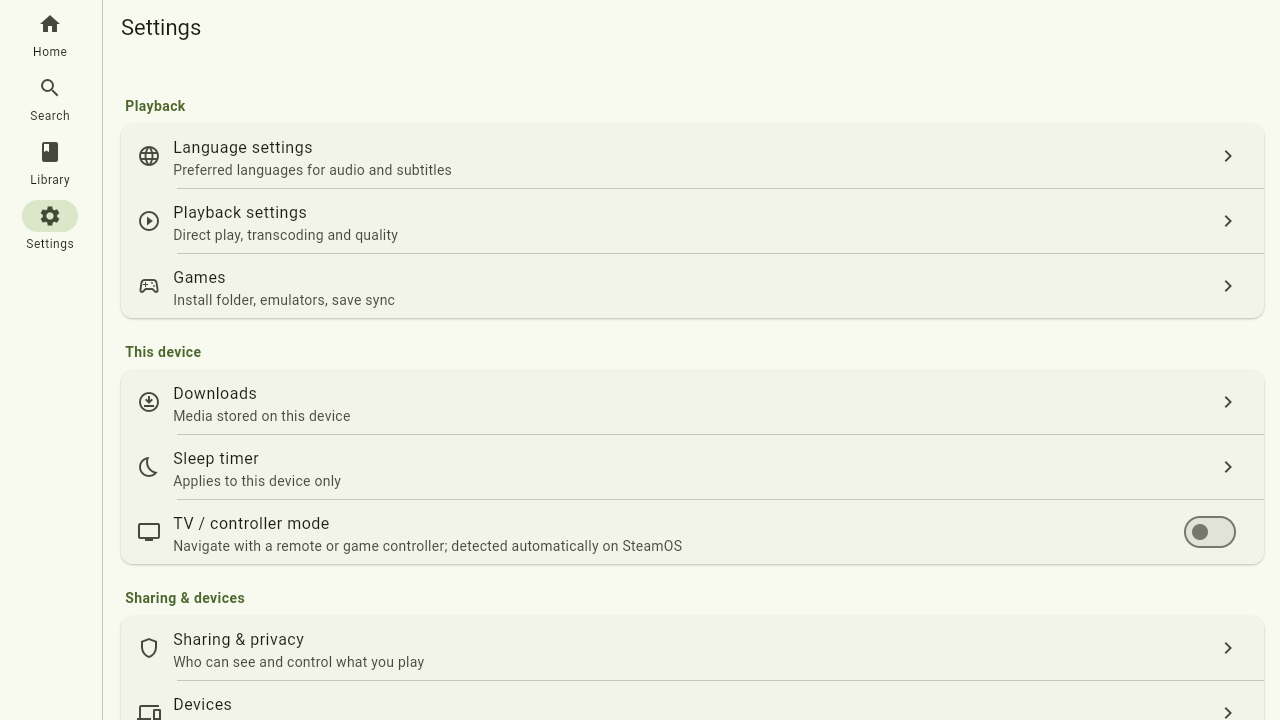
Some screens are only for administrators. If you are signed in with an admin account you'll see two extra entries under Server in the Settings tab; ordinary users never see these, so they can't reach the management screens.
The admin role itself is assigned in your identity provider (for example Keycloak), not in the app — the player only reflects it.
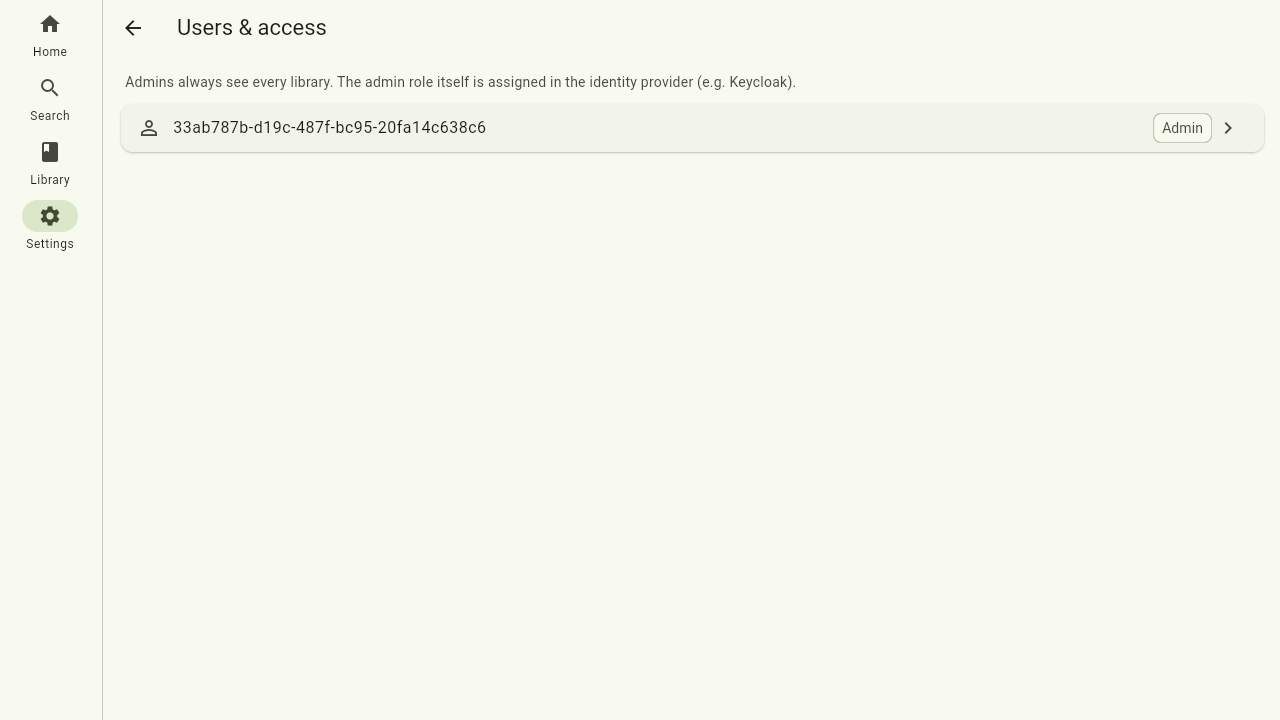
Users & access
Users & access lists everyone the server knows. A user appears here after their first sign-in. Admin accounts carry an Admin chip. Tap a user to manage which libraries they can see.
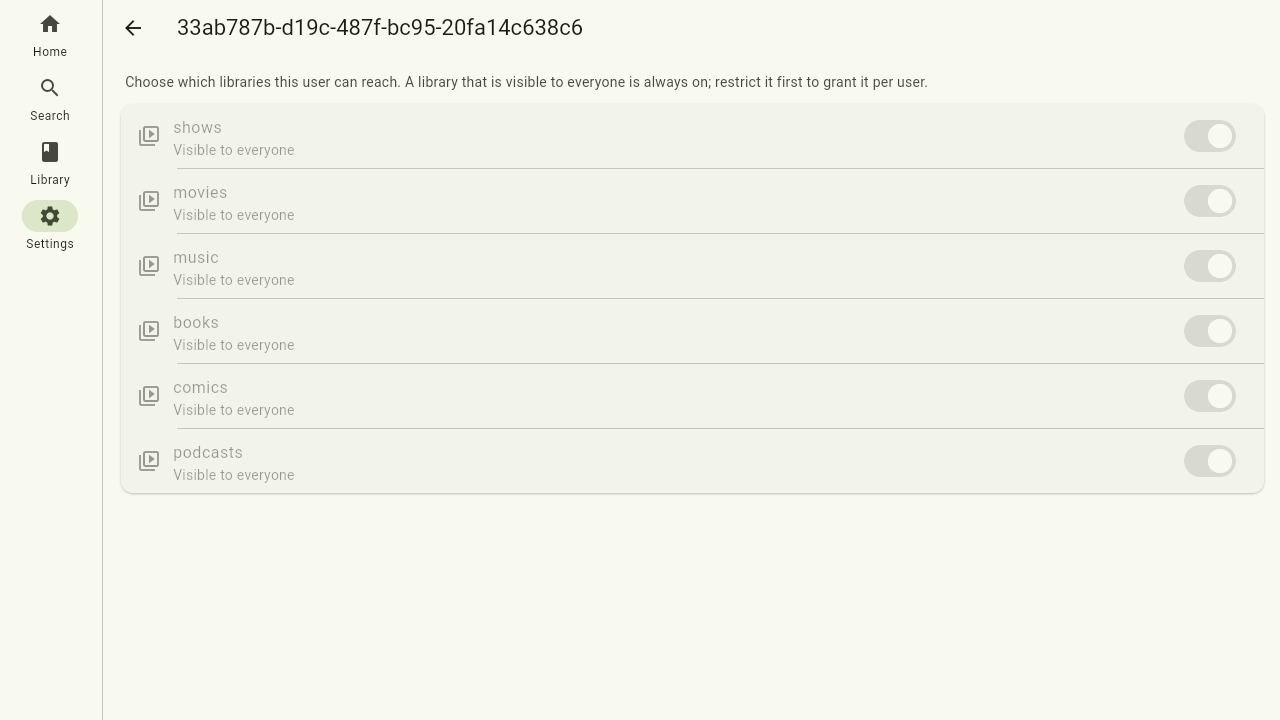
Per-user library access
Open a user to grant or revoke their access to restricted libraries — one switch per library. Libraries that are visible to everyone are shown locked on: everyone already sees them, so there's nothing to grant. To manage per-user access to such a library, first restrict it on the Library visibility page.
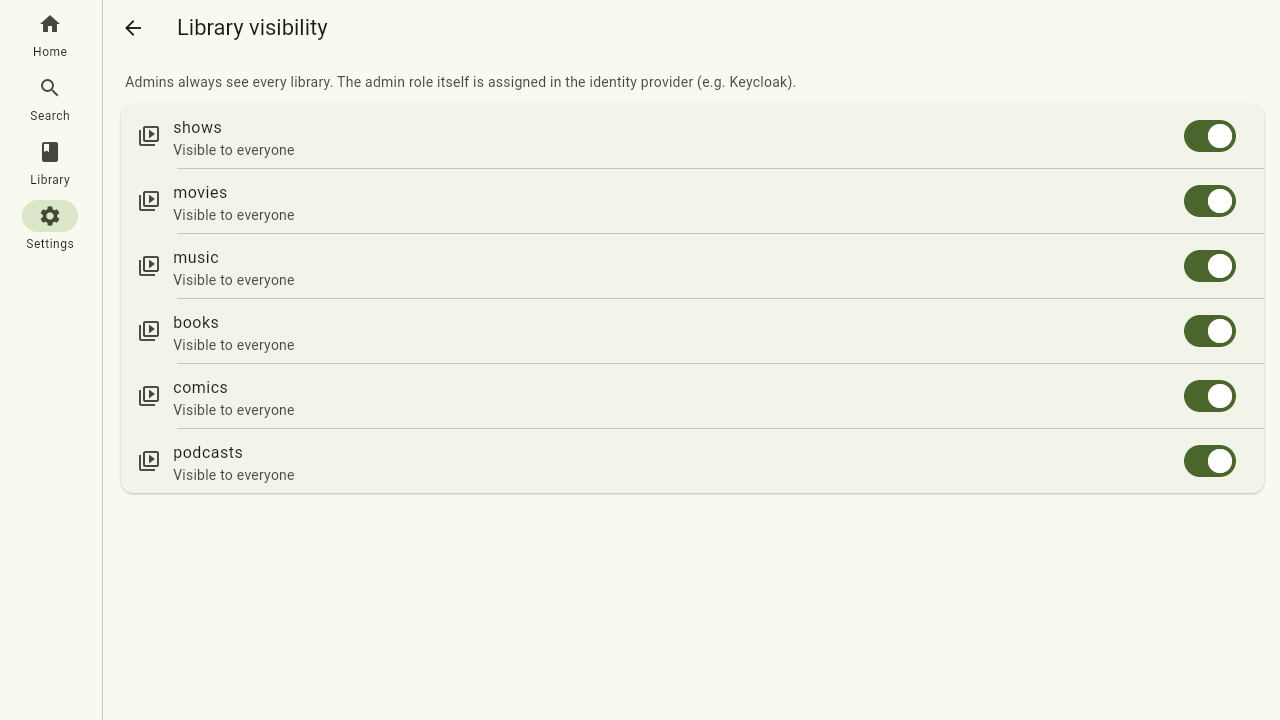
Library visibility
Library visibility controls, per library, whether every user can see it:
- Visible to everyone — any signed-in user sees the library.
- Restricted — only users you've granted access to (on their access page) see it.
Admins always see every library, regardless of these switches.
Uploading media
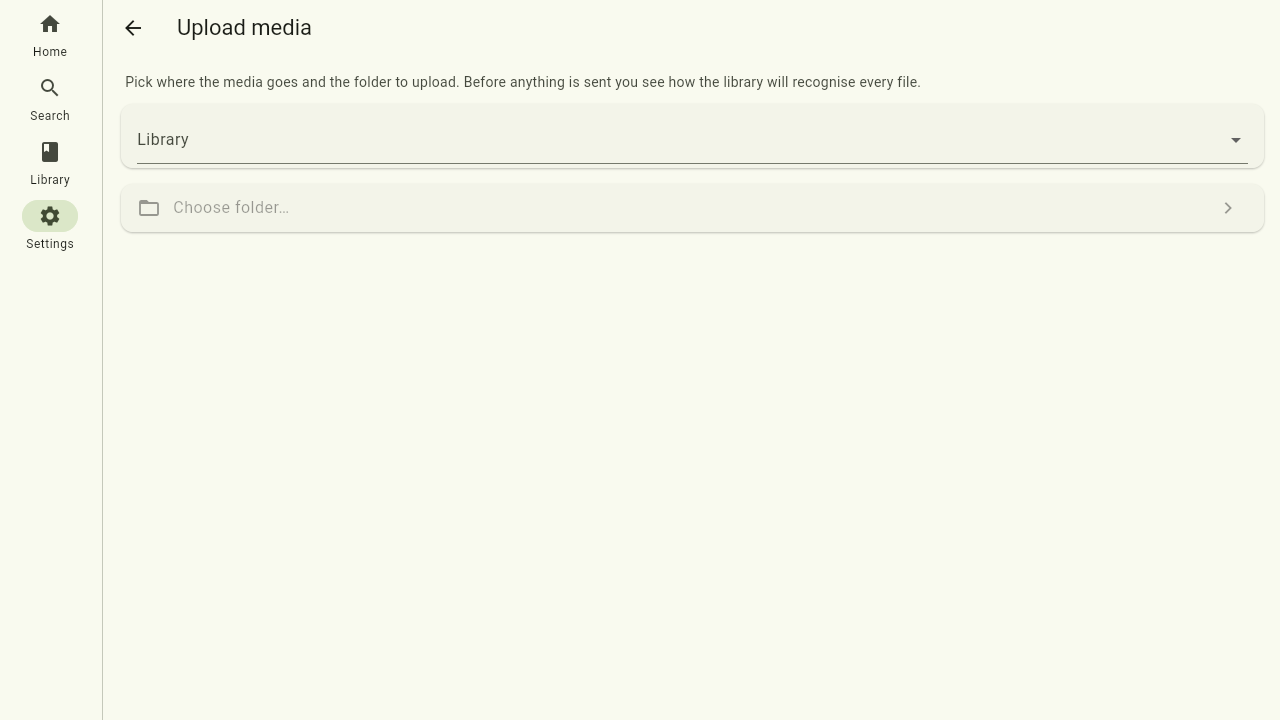
Upload media (Settings → Server) adds media to a library straight from the player: a whole show, an album for an artist that is already there, or a folder full of artists. It works in the desktop apps, the web player and on Android and iOS. On a phone or tablet the screen stays on while an upload runs; if the app is put away and suspended anyway, the upload simply continues the next time you open the page.
- Pick the library and the directory (disk) it should land on. Each directory shows its free space; one the server cannot write to is greyed out.
- Optionally fill in Inside folder — the existing folder the upload belongs under, such as the artist for an album. Leave it empty to upload into the root of the directory.
- Choose folder… and pick the folder on your computer. With Upload as one folder on, it keeps its name on the server (which you can edit, for instance to add the
(2019)a show folder needs); switched off, the folders inside it land directly in the target — the way to upload a folder full of artists or shows. - Read the preview. The server tells you, per file, how the library will recognise it (show, season and episode; artist, album and track; …), and at which level it sees the top folder. A file marked Ignored would not be picked up where it is going and is not uploaded; Already there is skipped unless you switch on Overwrite existing files.
- Start upload. Files go up in chunks, so a dropped connection costs little: the upload retries and continues by itself. You can pause and continue, and cancel removes what is unfinished from the server (files that are already complete stay in the library).
Every finished file is added to the library right away; there is no need to scan afterwards. If the app is closed mid-upload, the page offers to continue the next time you open it — choose the same folder again and it picks up where it stopped.
Uploading games
A game library takes its games through the same upload page, with a guided target instead of
the free Inside folder field, because the scanner expects every game as
<platform>/<Title (year)>/…:
- Pick the game library and its directory. The Inside folder field becomes a Platform
list (the folders the server knows:
ps3,steam,snes, …); under it the page says what a game of that platform must consist of. - Choose folder… and pick the game's folder. Its name is split into Game title and
Year, which you can correct; the line under them shows where it lands
(
ps3/Demon's Souls (2009)/). A game is always one folder, so there is no Upload as one folder switch here. - Read the preview. What the server needs per platform:
- a ROM: the launchable file (
.cue/.chd,.z64,.gba, …) with its companions (the.binfiles of a.cue) next to it; - a PlayStation 3 game: the folder as RPCS3 expects it, with
PS3_GAME/PARAM.SFOinside; - a Steam game: Steam's
appmanifest_<appid>.acfnext to the game'ssteamapps/common/<installdir>folder; - a Windows game: one ready-to-run
.zip; a Linux game: a GOG.shinstaller or a.tararchive. A PS3 or Steam folder whose marker file is missing is shown as Not uploaded with the reason: the whole game folder, marker included, has to go up in one session, and the server only scans it once that session finished.
- a ROM: the launchable file (
- Start upload. When it is done the page waits for the scan to list the game and then shows Found in the library with a button to its page, plus — for PC and Steam games — whether its save locations are known (from the Ludusavi manifest or set by an administrator) or still have to be set before saves sync. If the scan has not listed the game within two minutes, the page says so; check the library a little later.
The folder layout, the platform folder names and the per-platform rules are described in the server's naming conventions. Playing, saves and achievements from the user's side: Games.
Podcasts
Managing which podcasts the server carries is an admin task. In a podcast library, Add podcast subscribes the server to a new feed, and Unsubscribe on a podcast's page removes it. Ordinary users can browse, download and play episodes, but never see these controls.
Server maintenance
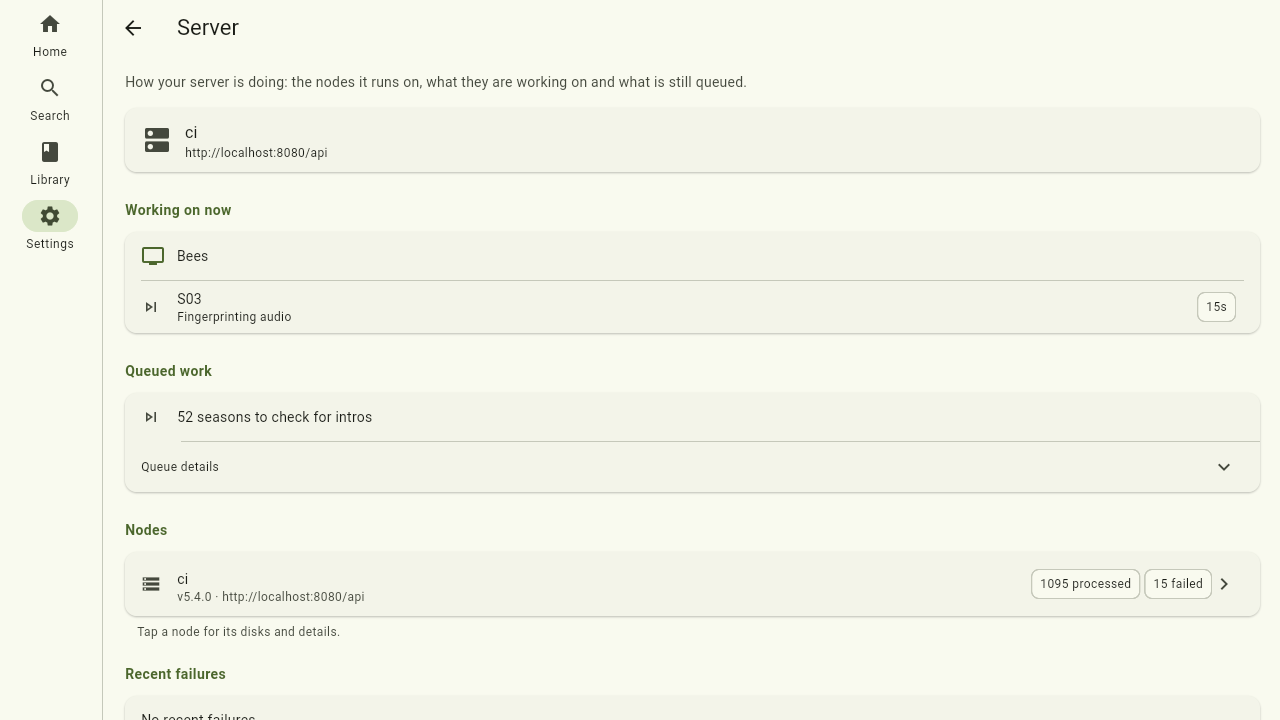
The server page also carries a Management section for admins, with the housekeeping actions:
- Scan for new files — pick up newly added files. Quick and safe.
- Fetch missing metadata — download metadata and artwork only where they are missing. Safe to run anytime, for example after adding a TMDB key.
- Rebuild library metadata — pick one library, then delete and re-download all its metadata and artwork. Heavy and destructive, so it asks for confirmation first; use it after a wrong match or to fill newly added metadata fields on old items.
- Rebuild search index — regenerate the search index from the database. Search stays available while it runs.
Each action runs in the background; a snackbar confirms the start, and progress shows in the activity list on the same page. The ⋮ menu on a movie, show, episode, artist, album or track offers the same Refresh metadata for that single item.
Where to next
- The rest of the server settings: Settings